

Your Apple TV
You will need an Apple TV that supports compatible tvOS IPTV apps. This guide is designed primarily for Apple TV 4K and Apple TV HD devices.
Follow this step-by-step Apple TV IPTV setup guide to install a compatible IPTV player, add your Xtream Codes or M3U playlist, and start streaming on Apple TV.
Choose a compatible player, add your IPTV credentials, and let the app load your content.
Before starting your Apple TV IPTV setup, make sure you have a compatible Apple TV, an IPTV player, your subscription details, and a stable internet connection.
You will need an Apple TV that supports compatible tvOS IPTV apps. This guide is designed primarily for Apple TV 4K and Apple TV HD devices.
Your IPTV player does not provide the service itself. You need an active IPTV subscription or trial that provides the login information required by your player.
Depending on the IPTV app you choose, you may need Xtream Codes login details or an M3U playlist URL to add your service to Apple TV.
Install a compatible IPTV player from the Apple TV App Store. In the next section, we’ll show you several apps that can be used for an Apple TV IPTV setup.
Important: IPTV players are generally separate from your IPTV service. Installing an app alone does not automatically provide live channels, movies, or series — you still need valid service credentials to add to the player.
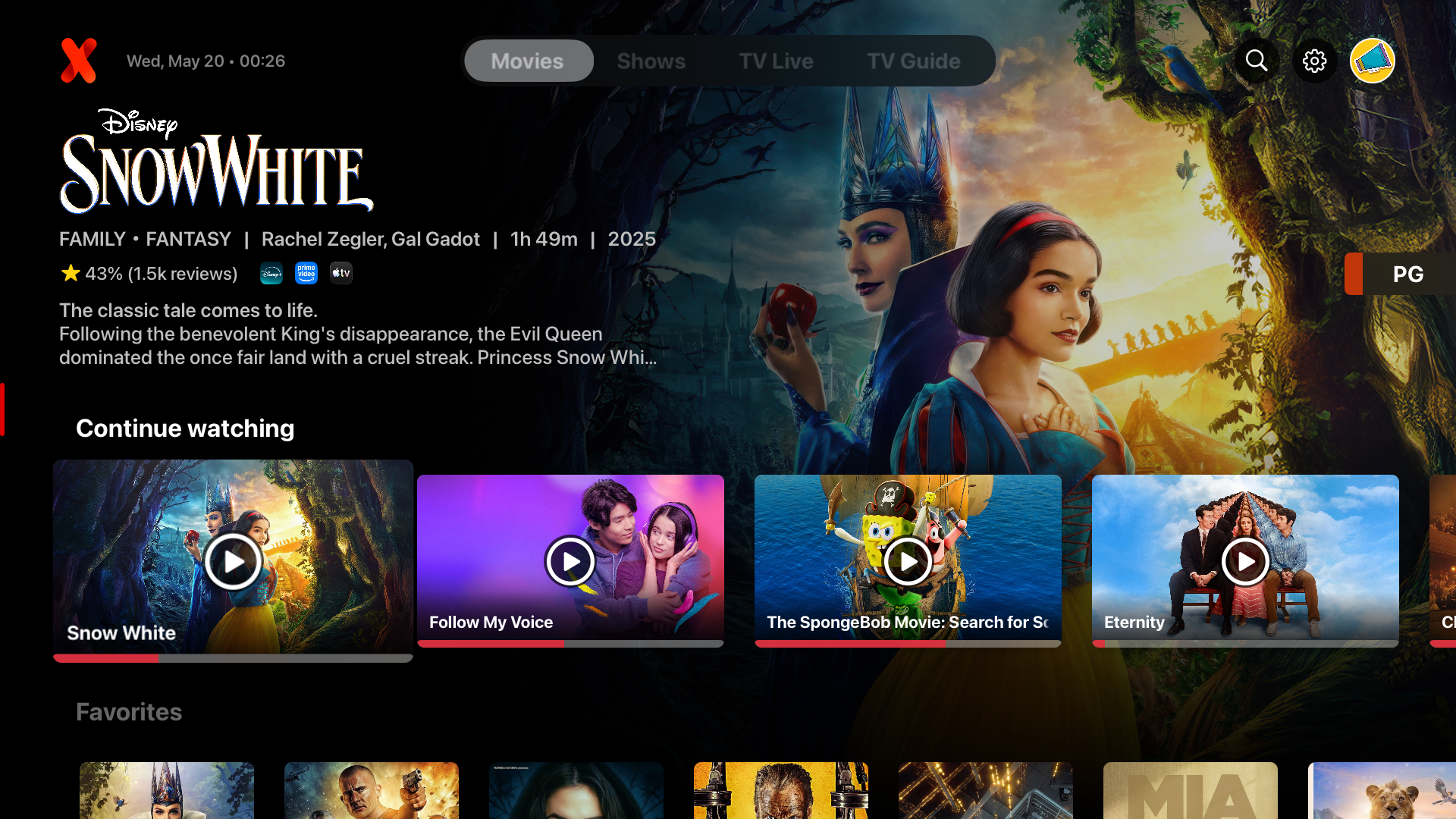
IPTVX is a native Apple-focused IPTV player designed around a polished, streaming-style interface for live TV, movies, series, guide data, playlists, and personal media libraries.
IPTVX presents personal IPTV libraries with a cinematic interface designed for Apple TV and other Apple devices.
UHF is an IPTV player designed for Apple TV, iPhone, iPad and Mac. It supports common IPTV playlist formats including M3U8 and Xtream Codes, making it another option for your Apple TV IPTV setup.
UHF focuses on playlist management, live TV, guide data and playback features while working across multiple Apple devices.
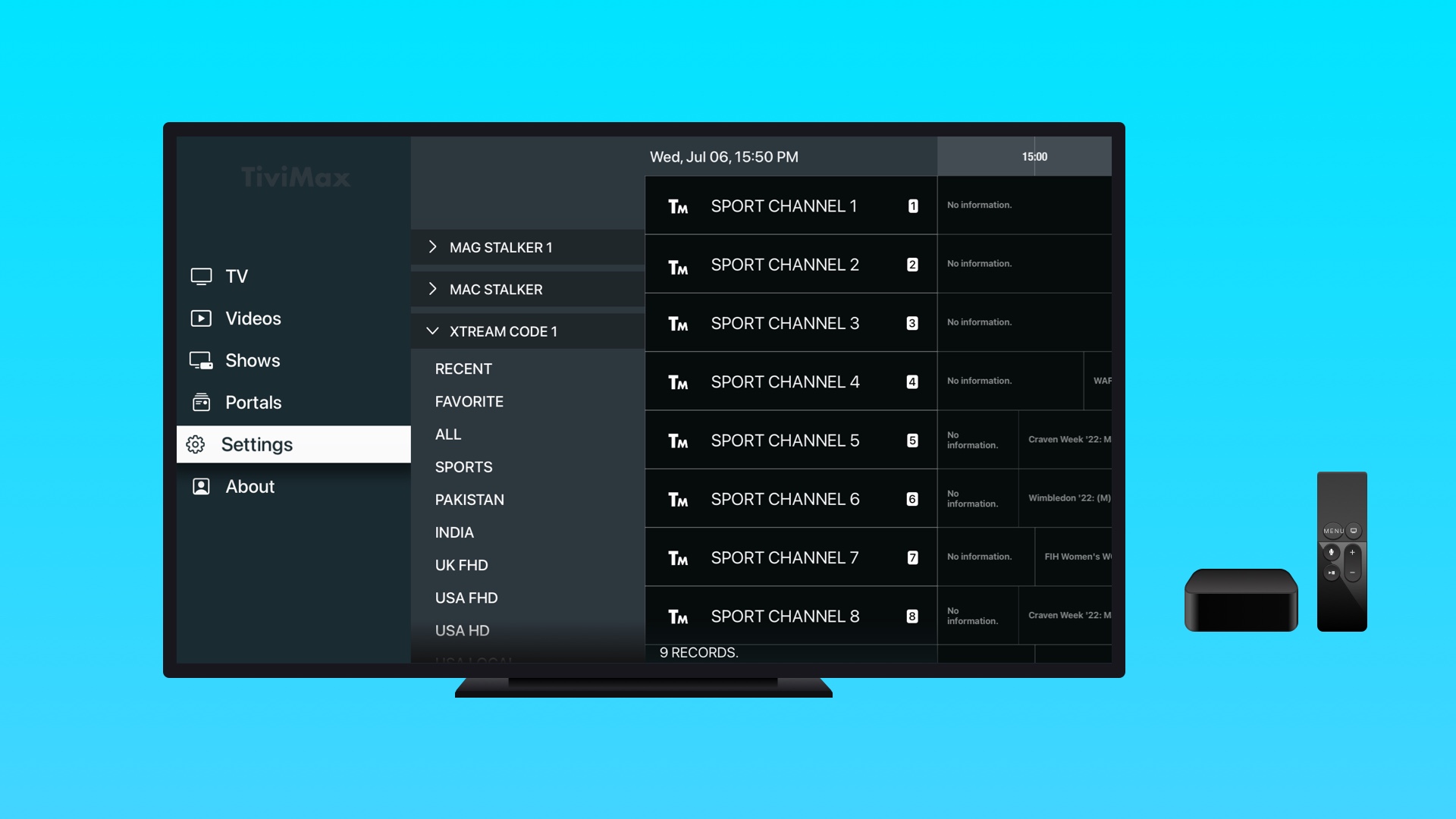
Tivimax IPTV Player supports Stalker portals, Xtream Codes and M3U playlists, giving Apple TV users several ways to add and organize an IPTV service within a TV-focused interface.
Tivimax combines live TV, VOD, EPG management, search and customization features with support for several common IPTV connection methods.
IBO Pro Player provides a simple way to load and manage IPTV playlists. Its streamlined interface makes it an option for Apple TV users who want a straightforward IPTV setup.
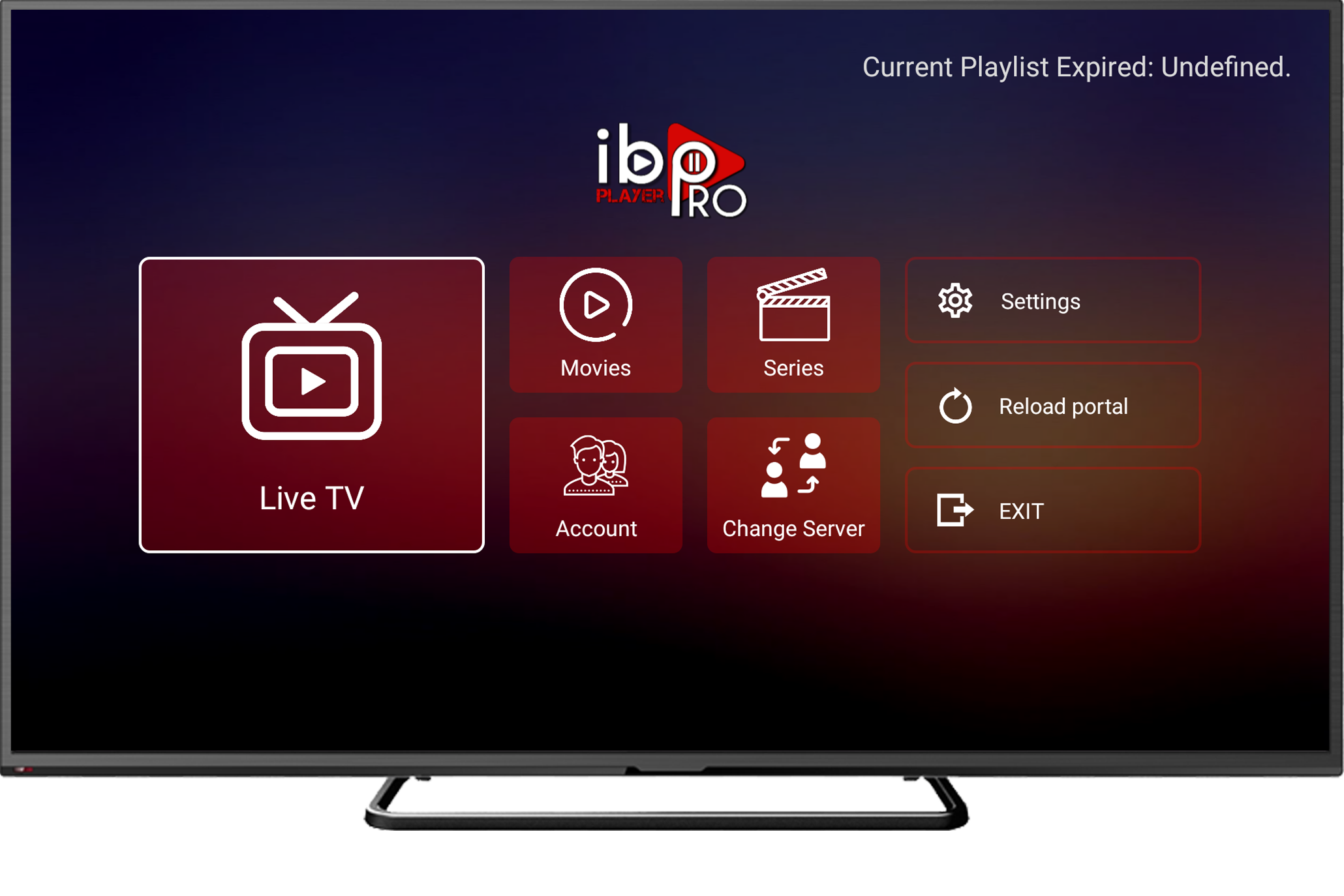
IBO Pro Player focuses on quick playlist loading, straightforward navigation and media playback. The app developer also lists support for multiple screen resolutions, including 4K displays.
After installing a compatible IPTV player on Apple TV, the next step is adding your service credentials. Most players support either an Xtream Codes login, an M3U playlist URL, or both.
With Xtream Codes, your IPTV provider normally gives you a server address, username and password. Add those details inside your compatible Apple TV IPTV player.
If entering a long URL with the Apple TV remote feels slow, you can use the Apple TV Remote controls on a nearby iPhone or iPad to make text entry easier.
Launch IPTVX, UHF, Tivimax, or another compatible IPTV player installed on Apple TV.
The exact wording varies by app. Look for an option to add a new playlist, account, provider, or service.
Choose the Xtream Codes or Xtream API option, then enter your server URL, username, and password.
Save the account and allow the player time to import available live TV, movies, series, and guide information.
Menu names vary between IPTV apps. One player may say “Add Playlist,” another may say “Add Account” or “Add Provider.” The basic process is the same: choose the supported login method, enter your valid IPTV credentials, save, and let the app load your library.
If your IPTV playlist will not load on Apple TV, your login is rejected, channels buffer, or guide data is missing, use these checks before starting the setup again.
Check that Apple TV is connected to the internet, your IPTV subscription or trial is active, and the credentials you entered match the details you received.
If your IPTV app on Apple TV cannot import the playlist, first check the M3U URL or Xtream Codes details you entered.
A rejected login usually means one of the account fields does not match the credentials supplied with your IPTV service.
Buffering can have several causes, including the stream itself, Wi-Fi conditions, internet performance, the IPTV app, or the selected quality.
If one player is behaving unexpectedly, the issue may be specific to the application rather than your IPTV credentials.
Your channels may load correctly while programme guide information takes longer to appear or is unavailable for some channels.
IPTV playlist URLs can be long, making them inconvenient to type manually with the Apple TV on-screen keyboard.
When Apple TV requests text input, using your iPhone or iPad for keyboard entry can make long server URLs, M3U links, usernames, and passwords much easier to enter than using the on-screen keyboard alone.
Quick answers about how to install IPTV on Apple TV, IPTV players, Xtream Codes, M3U playlists, Apple TV 4K setup, and common installation issues.
Install a compatible IPTV player from the Apple TV App Store, open the app, then add the valid IPTV credentials provided with your service. Depending on the player, you may use Xtream Codes, an M3U playlist, or another supported login method.
Yes. Apple TV 4K can use compatible tvOS IPTV players available through the App Store. Install the player, add your IPTV account or playlist, and allow the application to load your available library.
Both can work when supported by your IPTV player. Xtream Codes normally uses a server URL, username, and password, while M3U uses a playlist URL. Use the format supplied by your IPTV service and supported by the app you choose.
Examples covered in this guide include IPTVX, UHF, Tivimax, and IBO Pro Player. Features and supported login methods vary, so choose the player that fits your setup and preferred interface.
An IPTV player and an IPTV service are separate. Installing a player does not by itself provide channels, movies, or series. You need valid service credentials or a compatible playlist to add to the player.
Check the playlist URL, server address, username, and password for typing mistakes. Also confirm that your service is active, Apple TV has an internet connection, and the selected player supports the login method you are using.
Using text input from a nearby iPhone or iPad can be easier than typing a long M3U playlist URL with the Apple TV on-screen keyboard. Always verify the complete URL before saving it.
Multiplex offers a 24-hour IPTV free trial that can be used to test compatibility, available content, and streaming performance on Apple TV before choosing a paid plan.
Start with a 24-hour free trial, choose a compatible Apple TV IPTV player, and follow this installation guide to add your service details and test your setup.